Showing posts with label Techs and Webs. Show all posts

Wednesday, 8 August 2012

Computer buying guide. [Gadget 101]

Specs to look for:

Brand:
The brand itself usually represents the quality of the products. Some computer makers like Apple, Asus, and Sony are well known for their low failure rate, and make generally computer with better build quality. Others like Dell and HP, have high failure rate and are generally unreliable (personal experience). Never hesitate to pay a couple of bucks more to make sure that your computer can last a year or so longer.

OS:
There are 3 major OS in the consumer market Windows, Mac OS, and Linux with their respective pros & cons. Having used Windows and Mac OS, here are my point of view on each OS:

-Windows:
Adv:

  • Larger market share, thus more softwares, and is generally the standard of the industry.
  • Can be easily installed everywhere.


Inc:
  • Large market share also means a popular target among hackers.
  • The user experience (UX) is generally not consistent as software generally doesn't share the same user interface (GUI)/ appearance.

Thursday, 19 May 2011

Buy a new PC for over $699, get a free Xbox. [Deal]

Anyone at there on the market looking to buy a new PC? I suggest that you refrain from doing so as Microsoft just published some stuffs on their blog detailing their back to school offer which you can find here.

http://windowsteamblog.com/windows/b/windowsexperience/archive/2011/05/12/students-we-ve-got-you-covered.aspx

The deal is that, buy a brand new Windows 7 PC using your .edu from Dell.com, HP.com or Microsoft Store, or just buy in stores with your user ID, and get a brand new free Xbox 360.

This offer will start from May 22nd in the US and May 27nd in Canada.

Meanwhile the details is a little bit vague about the offer in France as no dates were given for the France but they explicitly stated "will be coming soon", no price limit were given, and some other questions are left unanswered, like whether we can use other email adress than the .edu, and which retailers will participate in the program.

I'll update when the details are given (or you can post them in the comments when you know about them).

And to quote Microsoft's GM Windows Consumer Global Campaigns and Product Marketing, Miss Kathleen Hall:
A hot new Windows 7-based PC with a free Xbox 360 is the ultimate productivity, social and entertainment package for students


For questions about technology builds for your brand new computer like what kind of processor should you buy for your use (be it gaming, video rendering etc), is it better to get 4 GB RAM or 8 GB of RAM, etc. please post them in the comments, and I'll answer to the extent of my knowledge. :)

Happy shopping!

Tuesday, 8 February 2011

Online back-up, syncing, sharing with Dropbox [Software]

Ever had those time when you really, really need your files from your computer while your at school but you forget to save it in your thumb drive? Say goodbye to those time by using Dropbox
What is Dropbox?
Dropbox is a file-hosting service, which saves your files to the cloud (read: internet), automatically from it "physical" location. And you got 2 GB worth of free storage!
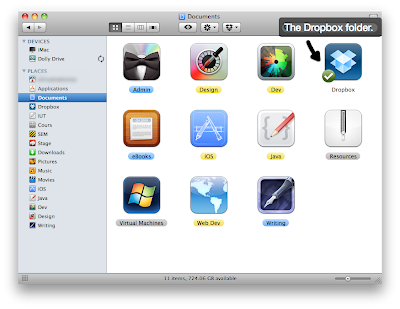
You'll get a Dropbox folder on your computer when you create a Dropbox account
So what does that means?
Back up
Back up any kind of files
All your files that you put in the Dropbox folder will be automatically and continuously backed up on the cloud (if your hard drive fails you, you'll still have your files, but be warned that deleting your files on the physical location will delete them all together on Dropbox).
Access
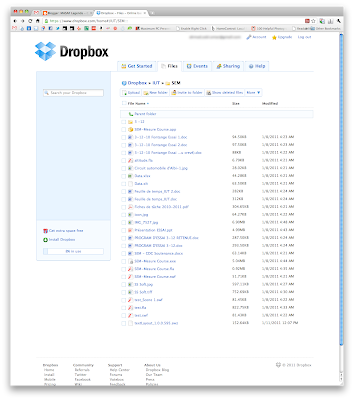
Dropbox web interface, never bring a thumb drive to class again
All those folders that you configure to be synced with Dropbox can be easily accessible with Dropbox web interface (any browser), mobile apps (iOS, WP7, Android), and any computers that you associate your Dropbox account to (some installation required).
Dropbox iPhone app
Sync
Dropbox menu (Mac OS X)
Like I mentioned above, you can access all your Dropbox folders on any computers that you want. So let's say I have a desktop and a laptop. On both of 'em, I've installed and logged in to the Dropbox client. I'll have an identical Dropbox folder in both computers.
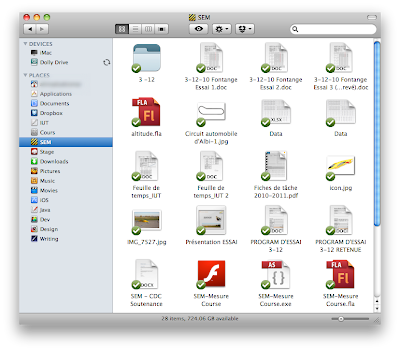
The "SEM" folder is being synced
When I create a new file in my laptop, the new file will automatically be created (this is what we called synchronization). And for example if I switched to a new laptop, all my files will be automatically be fetched from the internet, and saved on the computer. And I don't have to go through the hassle of transferring files to an external drive auparavant.
File sharing
And one other significant advantage of Dropbox is file sharing. Within each Dropbox folder, you'll be given a "Public" folder. All those files you put in there, can be accessed by anybody with a link to it.
Or if you so choose, you can share any folder or files with your friends, all you need to do is select the share option in the web interface, and enter the email of the friends with whom you wish to share the files or folders with.
Warning
  • To profit most of these features, you'll need internet connections, continuous syncing will cost you lots of bandwidth (if you are capped). However, your files in your hard drive will remain there without the internet connection, and will be automatically synced whenever you're connected again.
  • Deleting files from the Dropbox folder, will delete it on the server too. You'll lose it forever.
Further tips
  • Lifehacker (one of my favorite site) has lots of great tips on using Dropbox, check 'em out here: lifehacker.com
  • If you're going to create a Dropbox account, and want more than 2GB, click on my referral link and we both get 250MB each: dropbox.com

Tuesday, 1 February 2011

How to: Speed up your computer start time [HowTo]

Ever feels like your computer starts up slower and slower each time you install a software? That's normal since some program like Yahoo Messenger, Skype, will start to eat up your computer's processor's resources and RAM at login. These are called startup programs, which means programs that will start itself at every login. They consists of many different types of programs like: messengers, drivers, bloatwares (preloaded software from your manufacturers, all those Dell, Vaio, HP stuffs), trojans, viruses, and even worms, which you don't even need to run.

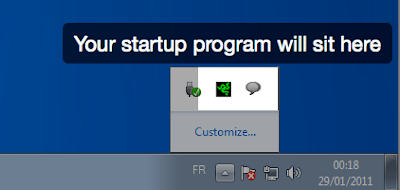
Your startup programs will normally sits at the Windows notification area

I want to run these programs manually rather than let it starts by itself, so how can I do that?

The process is simple:
  1. Click (Win + R) to launch the "Run" menu.
  2. Type in "msconfig"
  3. Click on "OK"

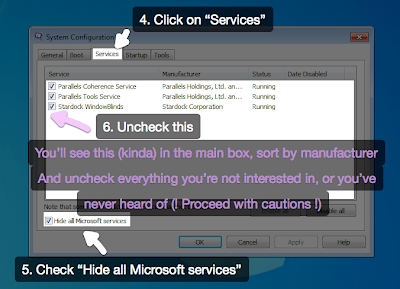
  4. You will see a new window launched, named "System Configuration", click on the services tab.
  5. Check "Hide all Microsoft services" at the bottom for safety reason. Warning: Make sure you didn't uncheck any of those Microsoft services, as you're system will have a hard time starting up if you did.
  6. Uncheck everything you think you don't need.
Warning: Proceed with cautions, unless you're sure with yourself, don't hide any services that you've never heard of, some might be important. Try not to hide stuffs from your computer's manufacturers (Dell, HP, Sony, etc), and important drivers (IDC, Synapse) unless if you're really really really sure.
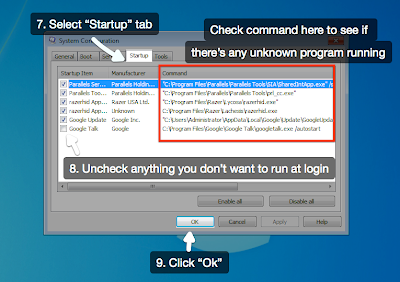
  • Click on "Startup" tab.
  • Again uncheck everything you don't need.
  • Warning: The same warning as before applies here. But here, you can check the command area, and you'll be surprised on how many viruses, and worms sits on you computer. Be careful on disabling it, as sometimes it can break your computer. But if you feel really adventurous, you can even try to delete the files at stated locations.
  • Click "OK"
  • You will be prompted to "Restart" the computer or "Exit without restart". Choose whatever pleases you.
  • Et voilà. In case your computer don't want to enter Windows at your next startup, tell me, and I'll teach you how to overcome that problem

  • Saturday, 29 January 2011

    F.lux, a nice little software that's good for your eyes [Software]

    Ever had a hard time sleeping after long hours at work in front of your computer at night, and wonder why? That's because your monitor is always set to the daylight white balance preset (meaning, bluish to oppose the yellowish ray of the sun).

    But what happens whey you use your computer at night? There's no more sun, but your monitor still emits lots of blue light emission, when it should adapts on your room lighting to achieve the best result.

    Enter F.lux, a software, that's designed to adapt your monitor color temperature in function of your room lighting and daytime.
    F.lux for Windows, even indicates your time of the day


    F.lux has three settings:
    • Your location: To deduce the sunset and sunrise, to determine when to activate itself
    • Your room's lighting: To calculate the amount of blue light need to be reduced
    • Your preferred transition time: The text explains itself
    F.lux for Mac
    I couldn't get a screenshot that represents the change, but I think it'll be better if you try it and see it with your own eyes. I'd guarantee, you'll never want to throw away this program.

    You can get F.lux, free from Stereopsis: http://www.stereopsis.com/flux/

    Wednesday, 26 January 2011

    Bookmarking tips [Web 101]


    So, I'm the newest addition to the MASAF Lagenda team. From now on, I'll be writing a column about web technology, gadgets and software. My post will be mostly about Google (Google Apps, Android, Chrome), Apple (iOS, Mac OS, and the hardware companion), and Microsoft (Win 7, WP7).

    First off, I'll be talking about bookmarking, for a power user.


    Tips 1: Hide the bookmark name for websites you visit most, and keep the ones for interesting pages you stumbled on.
    Hide the ones you don't need, quite obvious isn't it?
    Do you really need to see the "Gmail" text besides the Gmail icon on your bookmark? Instead, why not hide the details of a bookmark to make some space for other bookmarks on the bookmark bar.
    To do this on Google Chrome, all you need to do is, right click on the bookmark, and select "Edit..." and clear up the "Name" slot, et voilà.

    It's that simple. 1, 2, 3 and 4.
    Tips 2: Need to read something on the go? Use Instapaper!

    Instapaper.com
    So, what is Instapaper? Instapaper, is a tool, that can help you bookmark and archive interesting web pages using its bookmarklet, or its Chrome extension, and let you access these bookmarks later anywhere you want, be it your iPhone or iPad, your computer, your Android phone, and anywhere else.
    The Mobilizer
    To use Instapaper, you'll need to create a free account, and it'll let you archive as many pages as you want. Instapaper also uses a new kind of technology which was popularized by the iPhone app itself called Mobilizer. The mobilizer is a technology that strips the content out of the web page, and only keep the text, and the images, and format it in a way that was supposed to please our eyes.

    Example of a stripped content using Instapaper Mobilizer

    Reading in iPhone, made pleasant.
    The iPhone app
    The Instapaper
    iPhone app, is an indispensable thing for me. If you commute all the time, the iPhone app is a perfect companion to you. It has many features like:
    • Offline syncing (sync once, and read your articles offline)
    • Customizable fonts, and colors (à chacun son gout)
    • Tilt scrolling (tilt your iPhone to scroll, useful if you read in the class)
    • etc, etc..
    It's a paid app which costs around 4€, but a free version with basic features exists. Try it, who knows you'll like it.
    *There's another service which is almost similar to Instapaper called, Read It Later which I'm not really familiar with, take a look at it, who knows you'd prefer it than Instapaper.
    Conclusion
    So that's it for now, I hope my tips will be of use to you guys (esp bookworms), if you've got your own tips and hacks on bookmarking, don't hesitate to put it in the comment.